AWS EC2 Running Out of Disk? Expand Your EBS Volume in 5 Minutes
Contents
- Introduction
- Diagnosis: Check Your Disk Usage
- First Aid: Free Up Space Right Now
- Is docker system prune safe to run?
- The Real Fix: Expand the EBS Volume in AWS
- What does this cost on the free tier?
- Apply the New Size Inside EC2
- Check the current state
- Grow the partition
- Grow the filesystem
- Do I need to reboot?
- Final check
- Wrap-up
- References
Introduction
While running WordPress on AWS EC2, my site suddenly went down. I SSH’d in and found MySQL dead — and the cause was embarrassingly simple: the disk was 100% full. The 8GB default of a t3.micro Ubuntu AMI fills up fast once you pull a few Docker images.
In this post I’ll share how I handled an actual disk-full incident: expanding the EBS volume and applying the new size without a single reboot.
Diagnosis: Check Your Disk Usage
First, check the current disk state.
df -hFilesystem Size Used Avail Use% Mounted on/dev/root 6.8G 6.7G 0 100% /If Use% shows 100%, the problem is confirmed. Next, find out what is eating the space.
sudo du -sh /* 2>/dev/null | sort -hr | head -10The usual suspects are /var/lib/docker (Docker images/volumes) and /var/log (log files). If you want to dig deeper, run the same command on the directory in question.
sudo du -sh /var/lib/* 2>/dev/null | sort -hr | head -10First Aid: Free Up Space Right Now
If you need breathing room before expanding the volume, these commands can reclaim about 500MB–1GB.
# Clear the apt cache (~200MB)sudo apt cleansudo apt autoremove -y
# Trim systemd journal logssudo journalctl --vacuum-size=100M
Is docker system prune safe to run?
Among Docker cleanup commands, docker system prune -a --volumes needs caution.
- The
--volumesflag deletes unused volumes. - The catch: if a container died and is in the stopped state, its volume can be considered “unused”.
- If your DB data lives in a volume, it can be wiped out — so it’s safer to run the command without
--volumes.
# The safe version: leaves volumes untoucheddocker system prune -aThe Real Fix: Expand the EBS Volume in AWS
First aid is only a stopgap. 8GB is too tight for running WordPress + MySQL, so the proper fix is to grow the EBS volume itself.
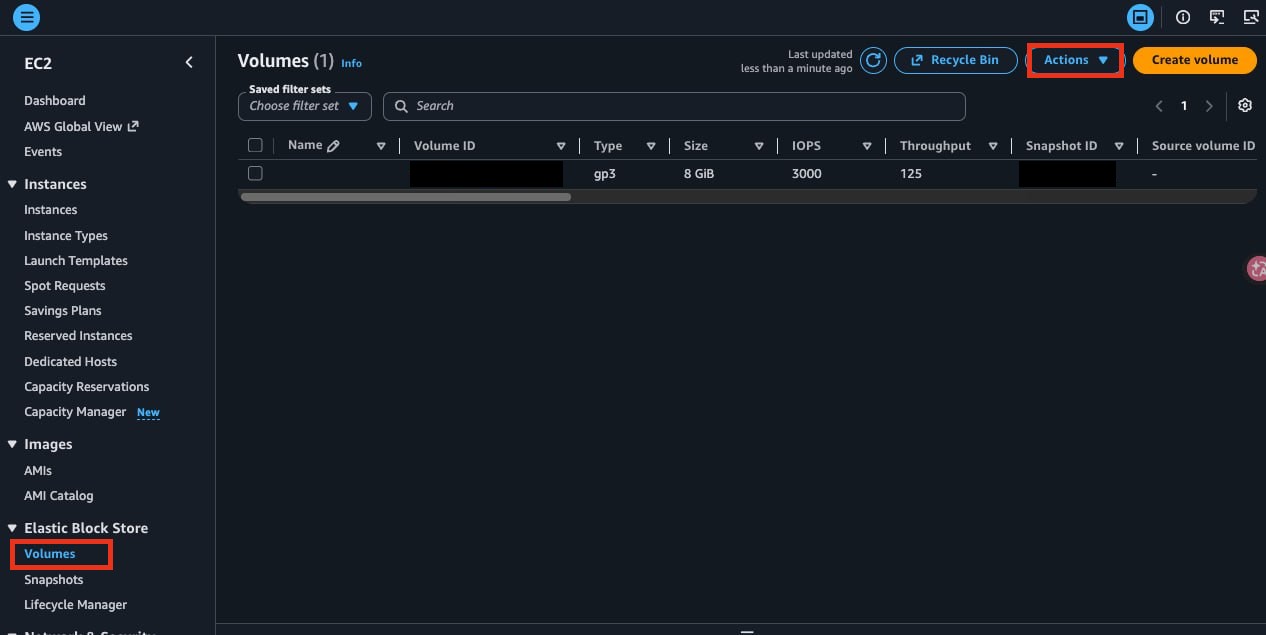
Steps in the AWS Console:
- AWS Console → EC2 → left menu Elastic Block Store → Volumes
- Select the volume attached to your instance
- Actions → Modify volume
- Change Size to what you need (e.g. 20GB) and click Modify
What does this cost on the free tier?
The AWS free tier includes 30GB of EBS for free (for 12 months). Going from 8GB to 20GB costs nothing extra.
After the free tier ends, pricing looks like this:
| Type | Price |
|---|---|
| gp3 | $0.08/GB-month |
| gp2 | $0.10/GB-month |
That’s $1.60/month for 20GB of gp3, and even 30GB is only $2.40/month — hardly a burden.
Apply the New Size Inside EC2
Changing the volume size in the AWS console does not automatically propagate inside EC2. You have to grow the partition and the filesystem yourself.
Check the current state
lsblkNAME SIZE TYPE MOUNTPOINTSnvme0n1 20G disk├─nvme0n1p1 7G part /├─nvme0n1p14 4M part├─nvme0n1p15 106M part /boot/efi└─nvme0n1p16 913M part /bootThe disk (nvme0n1) has grown to 20GB, but the root partition (nvme0n1p1) is still 7GB. The remaining 13GB is sitting there as unallocated space.
Grow the partition
sudo growpart /dev/nvme0n1 1This command extends partition 1 of the nvme0n1 disk to the end of the disk.
CHANGED: partition=1 start=2099200 old: size=14677983 end=16777182 new: size=39843807 end=41943006💡 What is a partition? A logical slice of a disk. Think of a pizza: the disk is the whole pie, and partitions are the slices. When you enlarge an EBS volume, the pie itself gets bigger, but the slice boundaries stay where they were.
growpartis what moves those boundaries outward.
Grow the filesystem
Growing the partition isn’t the end of it. Run df -h and it still reports 6.8GB.
sudo resize2fs /dev/nvme0n1p1resize2fs 1.47.0 (5-Feb-2023)Filesystem at /dev/nvme0n1p1 is mounted on /; on-line resizing requiredThe filesystem on /dev/nvme0n1p1 is now 4980475 (4k) blocks long.💡 What is a filesystem? The way files are stored and managed inside a partition. If the partition is the size of a room, the filesystem is the furniture arrangement inside it.
resize2fsrearranges the furniture to make use of the newly enlarged room.
Do I need to reboot?
No. As the on-line resizing required message implies, the filesystem grows live while mounted. It takes effect immediately with zero downtime.
Final check
df -hFilesystem Size Used Avail Use% Mounted on/dev/root 19G 6.6G 12G 36% /Now it’s 19GB with 12GB free! Time to restart the containers that died.
cd ~/wordpress # where docker-compose.yml livesdocker compose restartWrap-up
Here’s the whole disk-full recovery process in a nutshell:
- Diagnose: check usage with
df -handdu -sh - AWS Console: change the EBS volume size (Modify volume)
- Apply in EC2:
growpart→resize2fs(no reboot needed)
Honestly, the 8GB Ubuntu AMI default is just too small. If you plan to run WordPress or Docker, I recommend starting with 16–20GB. It’s free within the 30GB free-tier allowance, and under $2/month even after the free tier ends.
References
- Modify an EBS volume using Elastic Volumes – AWS official docs
- Extend the file system after resizing an Amazon EBS volume – detailed guide for growpart and resize2fs
- Amazon EBS pricing – pricing info including the 30GB free tier